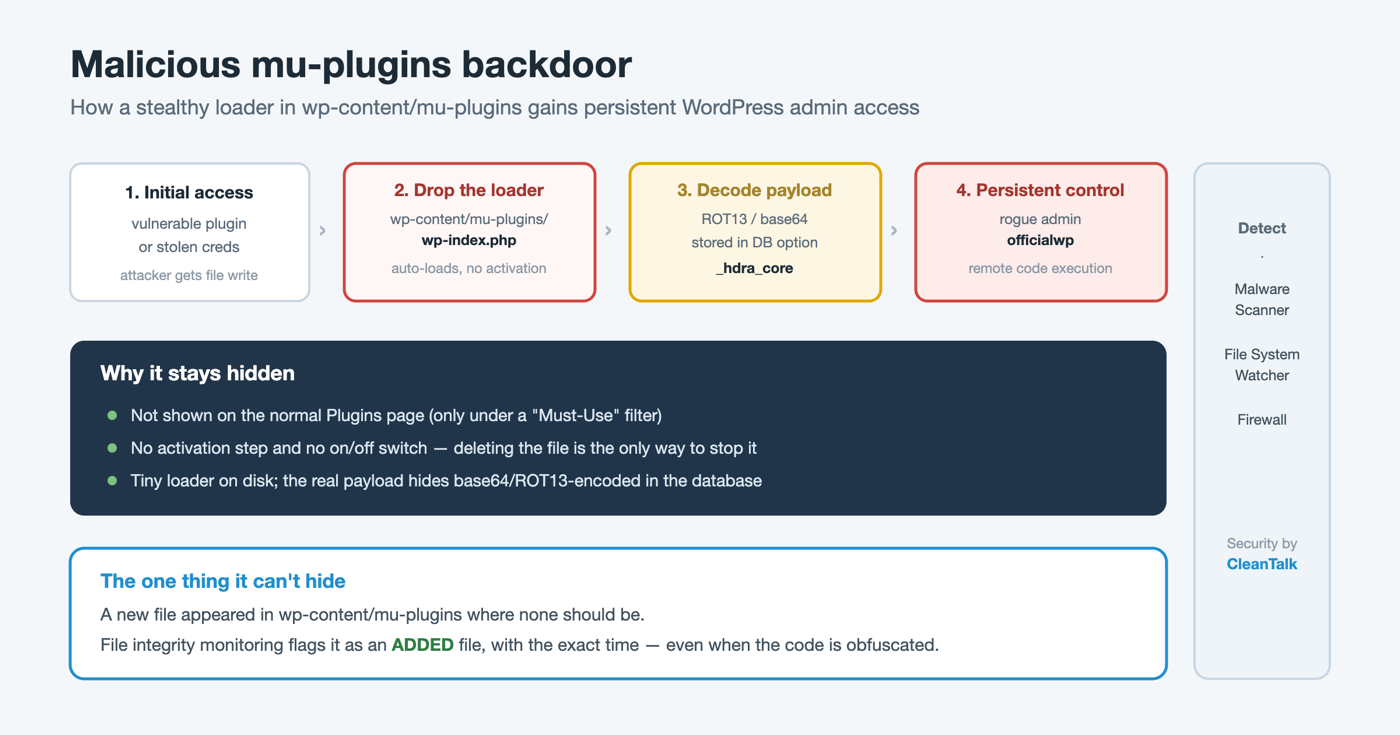
Throughout 2025 and into 2026, incident responders kept finding the same hiding place for WordPress backdoors: the must-use plugins directory, wp-content/mu-plugins. It is the perfect spot for an attacker — code placed there runs on every request, with no activation step, and never appears in the normal Plugins list. This article breaks down how the mu-plugins backdoor works, the indicators of compromise to look for, and how to detect and remove it, including with the file-change monitoring in Security by CleanTalk.
In brief
- Must-use plugins load automatically on every page load and cannot be deactivated from the WordPress admin — you have to delete the file.
- Attackers drop a small loader (often named to blend in, such as wp-index.php or index.php) into wp-content/mu-plugins after exploiting a vulnerable plugin or a stolen credential.
- The loader typically pulls an obfuscated payload (frequently ROT13 or base64) and, in recent campaigns, stores it in the database — under an option key such as _hdra_core — so a filesystem scan sees almost nothing.
- The payload gives the attacker remote code execution, creates a hidden administrator account (for example officialwp), resets passwords for common admin names, and re-installs itself if partially removed.
- Because the file is tiny, hidden from the plugin UI, and its real logic lives in the database, it is hard to spot by eye — but a file-integrity monitor catches the one thing it cannot hide: a new file appeared in mu-plugins.
What are mu-plugins, and why attackers love them
Must-use plugins (mu-plugins) are a legitimate WordPress feature. Any PHP file placed directly in wp-content/mu-plugins is loaded automatically on every request, before regular plugins, with no activation and no on/off switch in the dashboard. Developers and hosts use them for code that must always run — for example, platform-level tweaks that a site owner should not be able to disable.
Every property that makes mu-plugins useful for developers makes them attractive to attackers:
- They auto-execute. Dropping a file into the directory is enough; there is no "Activate" step to trigger and no option row that says the plugin is on.
- They are hidden from the Plugins page. The default Plugins screen in wp-admin does not list must-use plugins alongside normal ones; they appear only under a separate Must-Use filter that many site owners never click.
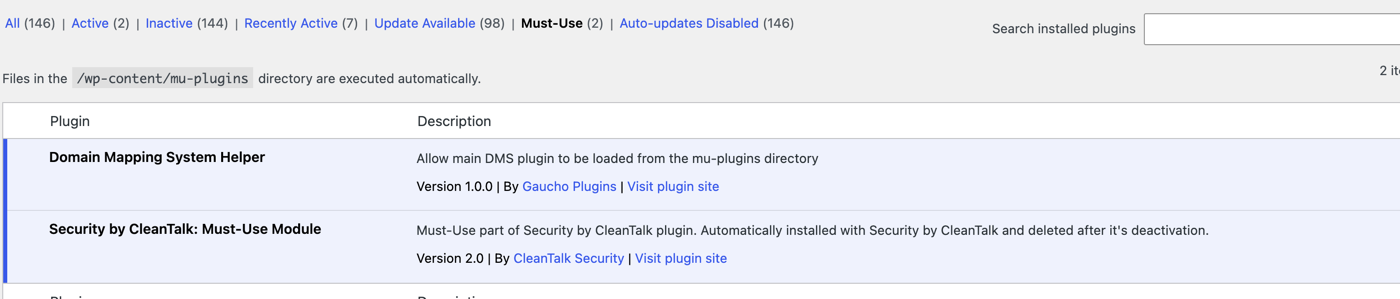
- They cannot be disabled from the admin. The only way to stop an mu-plugin is to remove the file — so a backdoor there survives "disable all plugins" troubleshooting.
- They load early. Because mu-plugins run before regular plugins, malicious code there can interfere with security plugins as they initialize.
How the mu-plugins backdoor works
The campaigns documented by security vendors in 2025 share a consistent shape (see the reports from Sucuri and The Hacker News).
1. Initial access. The attacker gets write access to the site — most often by exploiting a vulnerable plugin or theme, or by using stolen/brute-forced credentials — and writes a small PHP file into wp-content/mu-plugins.
2. A minimal loader. The dropped file is deliberately small and boring. It does not contain the malicious logic itself; instead it acts as a loader that decodes and runs a payload. Recent samples decode the payload with simple transforms such as ROT13 or base64, which are enough to defeat a casual glance and naive string searches.
3. Payload in the database. The most evasive variants do not keep the real payload on disk at all. The loader fetches it (from a remote URL or a stored blob) and writes it into the WordPress options table under a key such as _hdra_core. From then on, the tiny mu-plugin file reads its instructions from the database — so a scanner that only reads files finds a few harmless-looking lines and nothing else.
4. Persistence and control. Once running, the backdoor typically:
- Enables remote PHP execution, so the attacker can run arbitrary code by sending a request.
- Creates a hidden administrator account (for example officialwp) and resets passwords for common admin usernames such as admin, root and wpsupport.
- Re-installs itself from the database copy if the file is deleted, and can hide or disable security plugins to slow down cleanup.
The result is durable, hard-to-remove admin access that survives password changes and plugin removals unless every copy — file, database option, and rogue user — is cleaned at once.
Indicators of compromise (IoC)
Check for the following on a site you suspect:
- Any PHP file in *wp-content/mu-plugins* you did not put there. On many sites this directory is empty or does not exist by default, so any file deserves scrutiny. Names seen in the wild include wp-index.php, index.php, and other innocuous-looking names.
- An unexpected option row in the wp_options table, such as _hdra_core, holding a large encoded blob.
- An unfamiliar administrator user, for example officialwp, or admin accounts you do not recognize.
- Password resets you did not request for admin, root, wpsupport or similar.
- Obfuscation in mu-plugins code — calls to eval(), base64_decode(), str_rot13(), gzinflate(), or fetching remote content, especially chained together.
- A "Must-Use" filter suddenly appearing on the Plugins page when you never installed one.
Why it is hard to detect
Three design choices make this backdoor stealthy. It hides from the UI, because must-use plugins are not shown on the normal Plugins screen. It hides its logic, because the file on disk is a tiny loader while the real payload sits base64/ROT13-encoded in the database. And it hides its user, cleaning up traces and re-creating itself when partially removed. A signature scanner that only reads files can pass right over a loader that, on disk, is just a few obfuscated lines.
This is exactly where file integrity monitoring wins. The malware can obfuscate its code and stash its payload in the database, but it cannot avoid the fact that a file appeared in mu-plugins where there was none before.
How to detect and remove mu-plugins malware
Detect it with Security by CleanTalk
Security by CleanTalk is a WordPress security plugin with a cloud-backed malware scanner, a firewall, and a File System Watcher for change detection. It is free, and works with the CleanTalk cloud service from $9 per year. Two of its features are made for this threat:
- The Malware Scanner walks the site’s PHP — including wp-content/mu-plugins — with signature and heuristic analysis, and flags obfuscated loaders and files that do not belong to any known plugin or theme.
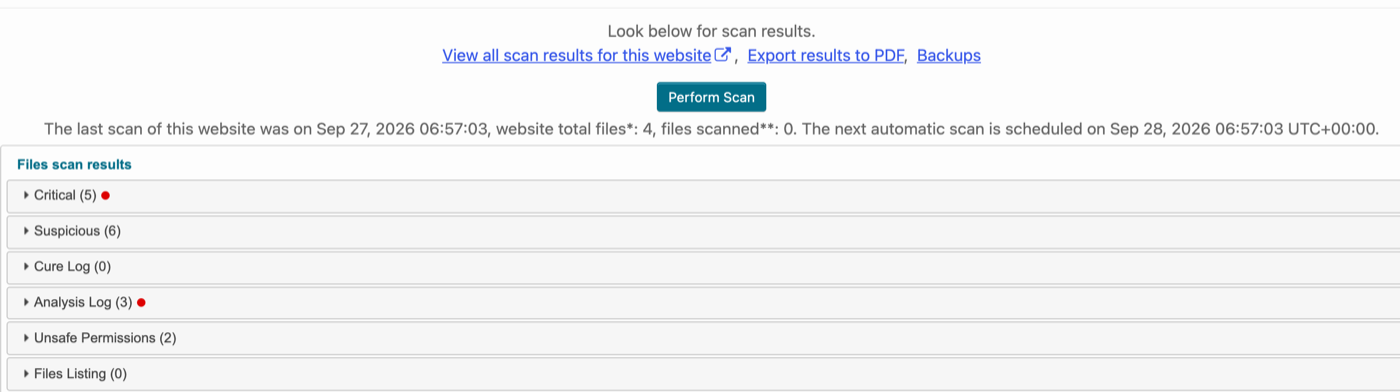
- The File System Watcher takes periodic snapshots of the site’s PHP files and lets you compare two dates, listing every file that was added, changed or deleted with the exact time it happened. A backdoor written into wp-content/mu-plugins shows up here as an added file the moment it lands — see our guide on WordPress file integrity monitoring.

Check it manually
1. Look inside wp-content/mu-plugins over SFTP or your host’s file manager. Treat every file there as suspect until you can attribute it. 2. Search the wp_options table for unexpected keys such as _hdra_core holding large encoded values. 3. Review Users → All Users for admins you do not recognize (for example officialwp). 4. Grep the codebase for chained obfuscation: eval(, base64_decode(, str_rot13(, gzinflate(.
Remove it completely
Because the backdoor lives in several places, remove all of them together, or it will regrow:
1. Take the site offline or into maintenance mode and preserve logs first. 2. Delete the malicious file(s) from wp-content/mu-plugins. 3. Delete the malicious option (such as _hdra_core) from wp_options. 4. Delete rogue admin users and audit legitimate ones. 5. Rotate all credentials — WordPress admin passwords, database password, hosting and SFTP — and change the WordPress secret keys and salts. 6. Rescan the whole site to confirm nothing re-created itself, and patch the plugin or theme that allowed the initial write.
What to do after an incident
Finding one backdoor rarely means finding the only one. After cleanup, keep the File System Watcher enabled so any re-infection surfaces as a new added file within the hour, run a full malware scan on a schedule, and keep the firewall on to reduce the odds of the initial exploit succeeding again. Related reading: major signs of malware on an infected WordPress site and how re-infections persist through cron.
Frequently asked questions
What is the wp-content/mu-plugins folder?
It is the "must-use plugins" directory. Any PHP file placed directly inside it is loaded automatically on every WordPress request, before regular plugins, with no activation and no way to disable it from the dashboard. It is a legitimate feature that attackers abuse for stealthy persistence.
Why don’t mu-plugins show up in my Plugins list?
By design, must-use plugins are not listed with regular plugins on the Plugins page; they appear only under a separate Must-Use filter. That is precisely why a backdoor placed there is easy to miss and cannot be turned off with the usual "deactivate plugin" step.
How do I know if a file in mu-plugins is malicious?
Attribute every file: did you or a plugin/host put it there intentionally? Malicious loaders usually contain obfuscation (eval, base64_decode, str_rot13), fetch remote content, or read a large encoded value from the database. A malware scanner and a file-integrity monitor will flag files that changed or do not match any known plugin.
Can I just delete the file to fix it?
No. Modern mu-plugin backdoors also store a copy in the database (for example under _hdra_core) and create hidden admin users, so deleting the file alone lets it regrow. Remove the file, the database option, and the rogue users together, then rotate all credentials.
Does a malware scanner catch database-stored payloads?
A file-only scanner can miss a payload that lives in wp_options. That is why you should combine signature scanning with file integrity monitoring (to catch the loader appearing) and a manual check of the options table and user list.
How can I prevent mu-plugins backdoors?
Keep plugins, themes and WordPress core updated to close the initial-access hole; use strong admin passwords and 2FA; run a firewall; and enable file-change monitoring so a new file in mu-plugins is reported immediately.
Key takeaway
The mu-plugins backdoor is effective because it hides in a directory most site owners never inspect, runs with no activation, and keeps its real payload out of the files. You beat it by watching for the one thing it cannot conceal — a file that appeared where none should be. Enable file integrity monitoring, scan regularly, and treat any unexplained file in wp-content/mu-plugins as an incident until proven otherwise.
Sign up for CleanTalk — free trial — malware scanning, file integrity monitoring, firewall, brute-force protection and 2FA for your WordPress site.