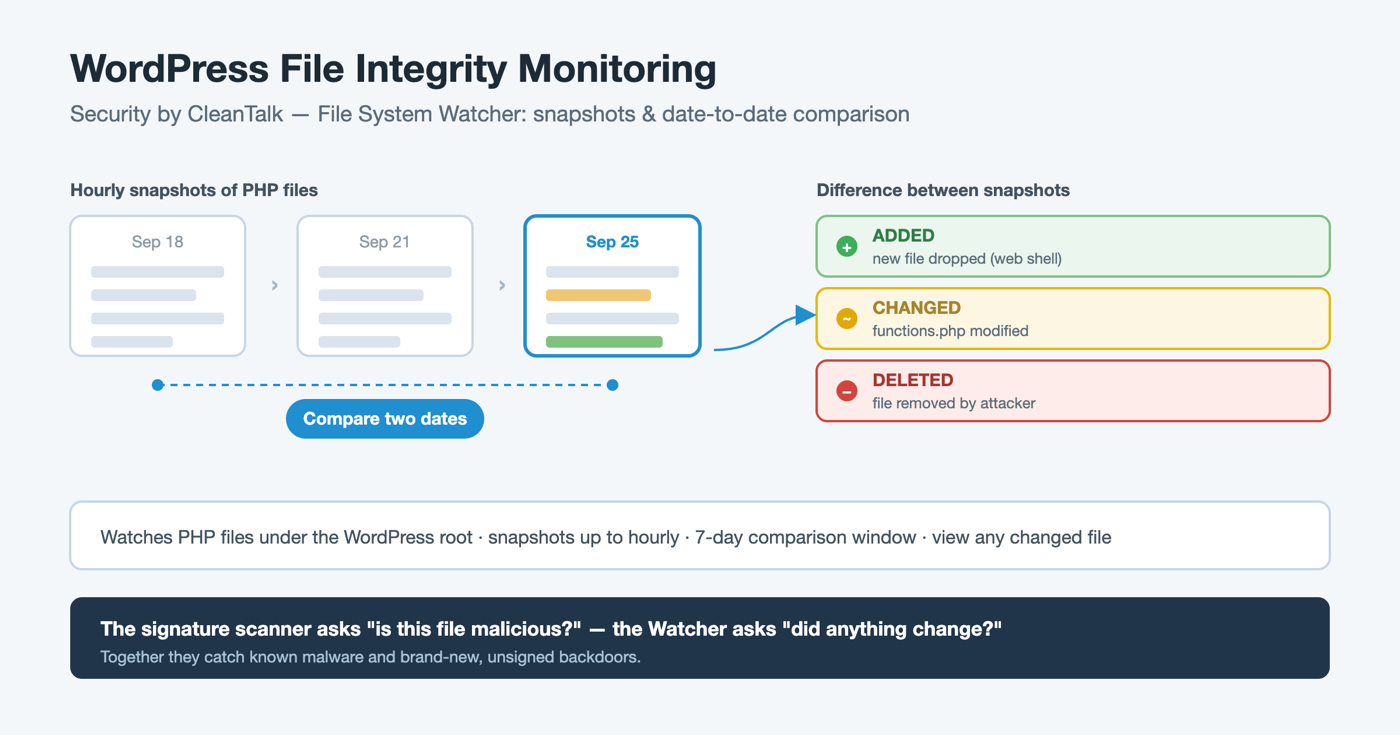
When a WordPress site is hacked, the attacker almost always leaves something behind on disk: a web shell dropped into wp-content/uploads, a backdoor appended to a legitimate theme file, a rogue .php inside wp-includes, or a modified wp-config.php. The malware itself may be obfuscated well enough to slip past a signature scanner on the first pass — but the one thing it cannot hide is that a file appeared, changed, or disappeared when nobody deployed anything.
That is exactly what file integrity monitoring watches for. This guide explains how the File System Watcher in the Security by CleanTalk plugin detects added, changed and deleted files on a WordPress site, how to turn it on and read its comparisons, and how it compares with the other common ways to monitor file changes.
Why file changes are the first sign of a hack
Most WordPress compromises are not subtle at the filesystem level. A vulnerable plugin gets exploited, and within seconds a script writes new PHP files or rewrites existing ones. Campaigns such as the radio.php infection and cron-based re-infections all share one trait: they touch the file system, and they often re-touch it to survive a cleanup.
The problem is timing. A daily or weekly malware scan can miss a file that is created and then deleted between scans, and it will not tell you when a change happened or which files were affected in a single incident. Integrity monitoring closes that gap by recording the state of the file system continuously, so that after an incident you can look back and see exactly what moved.
What file integrity monitoring actually does
A file integrity monitor takes periodic snapshots of the file system — a record of which files exist and a hash of each one — and then compares two snapshots to produce a difference:
- Added — files that exist in the later snapshot but not the earlier one (a dropped web shell, an injected loader).
- Changed — files whose content hash differs between snapshots (a backdoor appended to a theme’s functions.php).
- Deleted — files that disappeared (an attacker cleaning up, or a legitimate update).
This is fundamentally different from a signature scanner. A signature scanner asks "does this file match known malware?" and can miss a brand-new, never-before-seen backdoor. An integrity monitor asks "did anything change that I did not expect?" — which catches the unknown backdoor precisely because it is new. The two are complementary: the scanner tells you a file is malicious, the watcher tells you a file changed at all.
Meet Security by CleanTalk
Security by CleanTalk is a WordPress security plugin that combines a cloud-driven firewall, a malware scanner with auto-cure, brute-force protection, 2FA, a vulnerability checker for installed plugins and themes, and — the subject of this guide — a built-in File System Watcher. The heavy lifting is backed by the CleanTalk cloud, which aggregates attack and malware data across the whole network of protected sites.
The plugin is free and has no PRO version; it works together with the CleanTalk cloud service, which starts at $9 per year after a free trial, with every feature available on every account.
How the File System Watcher works in Security by CleanTalk
The File System Watcher runs quietly in the background and is built around three ideas.
Hourly snapshots. On a WordPress-cron schedule the Watcher walks the site directory and records a journal — the path and a content hash of each monitored file. By default it monitors PHP files under the WordPress root, which is where server-side backdoors have to live to execute. Snapshots are taken as often as once per hour, and the frequency is configurable in the plugin settings.
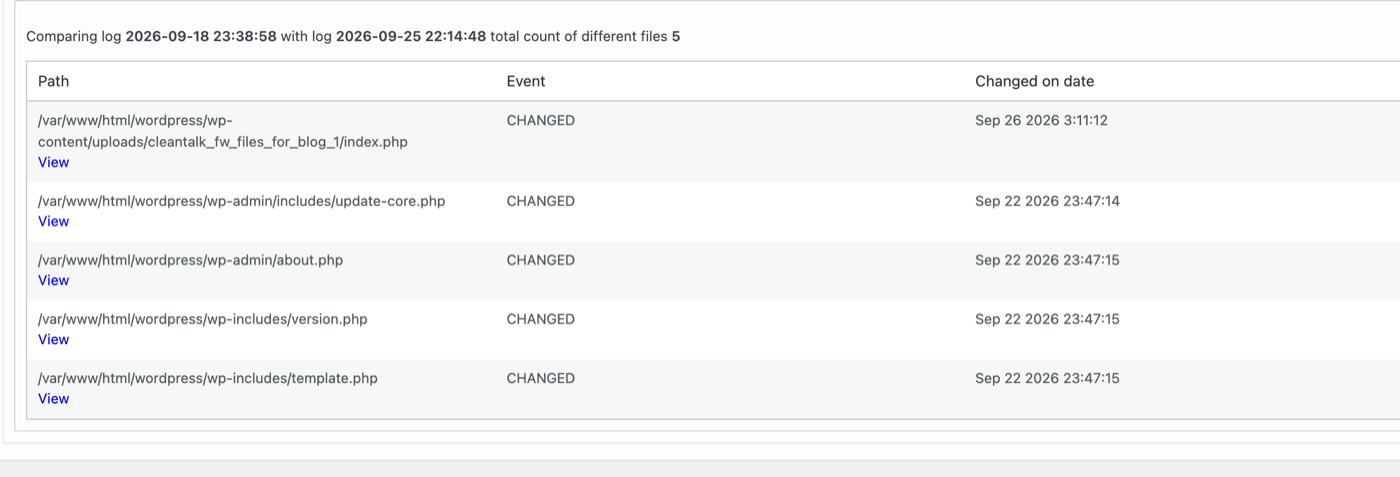
A seven-day comparison window. The Watcher keeps recent journals so you can compare any two points in time, from one day up to seven days apart. You pick a First date and a Second date on the File System Watcher tab, click Compare, and the plugin shows the difference as a list of events — each row naming the Event (added, changed or deleted), the Path, and the date the change was recorded.
On-demand snapshots and file inspection. You do not have to wait for the next scheduled run: a Create File System snapshot button captures the current state immediately. When a change looks suspicious, you can open the affected file’s content directly from the report to decide whether it is a legitimate update or an injection.
Because the Watcher records what changed and when, it turns a vague "the site feels off" into a precise, time-stamped list of files to investigate — and it pairs naturally with the plugin’s signature and cloud malware detection and BinaryCheck module for confirming whether a changed file is actually malicious.
How to enable the File System Watcher (step by step)
Setup takes a couple of minutes.
1. Install and activate the plugin
In the WordPress admin, go to Plugins → Add New, search for Security by CleanTalk, then click Install Now and Activate.

2. Add the access key
Open Settings → Security by CleanTalk → General Settings and click Get access key automatically in the Access Key field. The key connects the site to the CleanTalk cloud so the scanner and Watcher can work.

3. Enable the File System Watcher
Still on General Settings, scroll to the Malware Scanner group and turn on File System Watcher. Set the snapshots frequency to how often you want a journal taken — hourly gives the tightest picture of when a change happened.

Save the settings. The first journal is prepared in the background; until it is ready the tab shows "Please wait while FS Journal will be ready to work."
4. Open the File System Watcher tab and take a snapshot
Go to the File System Watcher tab. To capture the current state right away, click Create File System snapshot and refresh the page.

5. Compare two dates
Select a First date and a Second date, then click Compare. The Watcher lists every added, changed and deleted file between those two snapshots.
How to read a comparison and respond to a change
A comparison is only useful if you know what "normal" looks like. Right after you update WordPress core, a theme or a plugin, expect a burst of changed and added files inside wp-admin, wp-includes and the updated plugin’s or theme’s folder — that is a legitimate deployment.
Treat the following as red flags worth investigating immediately:
- New PHP files in wp-content/uploads — that directory should hold media, not code.
- Changes to core files in wp-includes or wp-admin when you did not run an update.
- A modified wp-config.php, index.php, or a theme’s functions.php outside a deployment.
- Randomly named PHP files (for example 8sjdakSJ3.php) appearing anywhere.
When a change looks wrong, open the file’s content from the report and confirm. If it is malicious, use the plugin’s malware scanner to cure or quarantine it, restore the original from a backup, and then rotate your secret keys and passwords, because a backdoor usually means credentials were exposed.
Alternative ways to monitor file changes on WordPress
CleanTalk is not the only option, and a layered setup is fine. Here is how the common approaches compare.
| Solution | Change detection | Scheduling | Compare arbitrary dates | Needs server access | Notes |
|---|---|---|---|---|---|
| Security by CleanTalk – File System Watcher | Added / changed / deleted, with file view | Hourly snapshots, up to a 7-day window | Yes | No | Built into a full security plugin; $9/year cloud |
| Wordfence | Compares files against the WordPress.org repository | On each scan | No | No | Strong for core/plugin files from the repo; custom code is "unknown" |
| Sucuri Security | Integrity check + audit log | On scan / continuous log | Limited | No | Good logging; deeper features are paid |
| WP Activity Log (file changes add-on) | Logs file additions/changes/deletions | Configurable scan | Via log timeline | No | Log-centric; pairs well with user-activity auditing |
| WP file Monitor | Added / modified / deleted alerts | Cron-based | No | No | Single-purpose and free; email/alerting focus |
| git status / WP-CLI `wp core verify-checksums` | Diff vs a known-good tree / core hashes | Manual or CI | Yes (git) | Yes (SSH/WP-CLI) | Free and precise for developers; core-only for checksums |
| OS-level (`find -mtime`, AIDE, Tripwire) | Mtime or hash database | Cron / manual | AIDE/Tripwire yes | Yes (root/SSH) | Powerful, but not WordPress-aware and not for shared hosting |
A short read on each:
- Wordfence is excellent at spotting changes in files that come from the WordPress.org repository, because it compares against the original. Files it cannot match — your custom theme, a premium plugin — are flagged as "unknown" rather than diffed against a prior state, which is where a snapshot-based watcher adds value.
- Developer tooling (git status, wp core verify-checksums) is the most precise option if you have SSH access and treat your site as code, but it is out of reach on typical shared hosting and does not run for non-technical site owners.
- OS-level integrity tools such as AIDE and Tripwire are the gold standard on a server you fully control, and complete overkill — and usually unavailable — on managed WordPress hosting.
For a site owner who wants file-change detection inside WordPress, with no server access and a clear "what changed between these two dates" view, the built-in Watcher covers the common case with the least setup.
Frequently asked questions
What is file integrity monitoring in WordPress?
It is a security control that periodically records the state of your site’s files and compares those records over time to detect files that were added, changed or deleted. It is one of the fastest ways to spot a backdoor or a defacement, because malware has to touch the file system to run.
How is the File System Watcher different from a malware scanner?
A malware scanner checks whether a file matches known malicious patterns; it can miss a brand-new backdoor with no known signature. The Watcher detects that a file changed at all, regardless of whether the change matches a signature. Run both: the Watcher points you to what changed, the scanner tells you whether the change is malicious.
How often does the Watcher check for changes?
It takes snapshots on a WordPress-cron schedule, as often as once per hour, and lets you compare snapshots from one day up to seven days apart. You can also trigger a snapshot immediately with the Create File System snapshot button.
Will it flag my normal plugin and theme updates?
Yes — a legitimate update changes files, so it will appear as added and changed files in the updated component’s folder. That is expected. Take a snapshot after each planned update so your baseline stays current, and treat only unexpected changes as suspicious.
Does file monitoring slow the site down?
The comparison and snapshot work run in the background on cron, not on every page load, so visitor-facing performance is not affected. By default the Watcher focuses on PHP files under the WordPress root, which keeps each snapshot lean.
A file changed — what should I do first?
Confirm whether you (or an auto-update) caused it. If not, open the file’s content from the report, and if it looks malicious, cure or quarantine it with the malware scanner, restore the clean version from a backup, and rotate your passwords and secret keys.
Does it monitor files outside the WordPress directory?
The Watcher focuses on the WordPress installation, where site compromises live. For full-server integrity monitoring outside the web root you would use an OS-level tool such as AIDE or Tripwire in addition.
Catch changes before they become incidents
Install Security by CleanTalk, get an access key, enable the File System Watcher, and take your first snapshot — from then on you will have a time-stamped record of every file that changes on your site.
Sign up for CleanTalk — free trial — file integrity monitoring, malware scanning, firewall, brute-force protection and 2FA for your WordPress site.

![CVE-2025-9331 – Spacious [THEME] – Missing Authorization to Autheticated (Subscriber+) Demo Data Import – POC](https://research.cleantalk.org/wp-content/uploads/2023/10/New_1_not_safe-1.png "CVE-2025-9331 – Spacious [THEME] – Missing Authorization to Autheticated (Subscriber+) Demo Data Import – POC")

Pingback:Malicious mu-plugins: The Stealthy WordPress Backdoor Hiding in wp-content/mu-plugins - Plugin Security Certification (PSC) by CleanTalk
Pingback:Website Malware Scanner That Crawls Every Page: Find Malware on Inner Pages - Plugin Security Certification (PSC) by CleanTalk
Pingback:WordPress Database Triggers and Malware | CleanTalk
Pingback:PHP2Shell and WordPress: What CVE-2026-109618 and CVE-2026-109619 Mean for Your Site - Plugin Security Certification (PSC) by CleanTalk