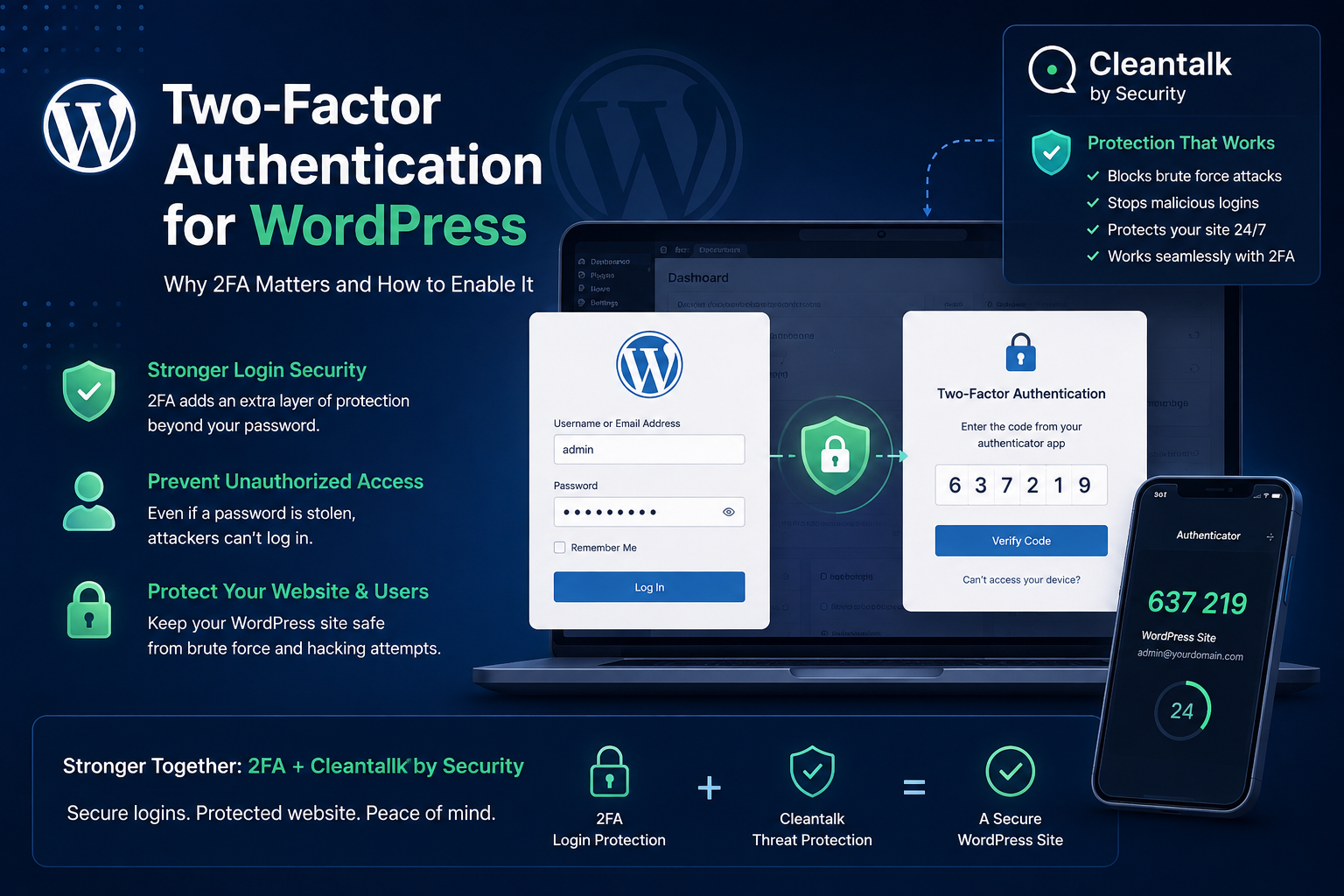
A stolen or guessed password should not be enough to take over your website — yet for most WordPress sites it is. Brute-force bots hammer /wp-login.php around the clock, and credential leaks from unrelated services are replayed against admin accounts every day. Two-Factor Authentication (2FA) closes that gap: even if an attacker knows your password, they still cannot log in without a second, one-time factor that only you control.
This guide explains what 2FA is, why every WordPress administrator should turn it on, and how to enable it in a few minutes with the free Security by CleanTalk plugin — including email codes, authenticator apps, per-role policies, and trusted-device memory. We also compare the main alternatives so you can choose what fits your site.
What is Two-Factor Authentication (2FA)?
Authentication factors fall into three groups: something you know (a password), something you have (a phone, an email inbox, a hardware key), and something you are (a fingerprint or face). A password alone uses just one factor. Two-Factor Authentication requires two of them — typically your password plus a short code that changes every login.
The practical effect is simple but powerful: the password is no longer a single point of failure. An attacker would need both your password and live access to your second factor at the moment of login, which is dramatically harder to obtain.
Why 2FA Matters for WordPress
- Passwords leak constantly. Billions of username/password pairs circulate from past breaches. Attackers reuse them in “credential stuffing” attacks, betting that people reuse passwords across sites.
- WordPress is a top target. As the world’s most popular CMS, it attracts automated login attacks by default — no one has to single you out.
- One admin account = the whole site. A compromised administrator can install malware, inject spam and hidden links, redirect visitors, steal customer data, and lock you out.
- The cost is asymmetric. Turning on 2FA takes a few minutes; cleaning up a hacked site, restoring backups, and recovering search rankings can take weeks.
Bottom line: 2FA is the single highest-impact login hardening step you can take on WordPress, and it is free.
Meet the Security by CleanTalk plugin
Security by CleanTalk is an all-in-one WordPress security plugin: a web application firewall, brute-force protection, a malware scanner with auto-removal, a security audit log, traffic control, and built-in Two-Factor Authentication. Instead of stacking a separate plugin just for login codes, you get 2FA as part of a broader defensive layer that already watches your login page and file changes. (2FA lives in the Security plugin; the companion Anti-Spam by CleanTalk plugin focuses on spam filtering and simply stays compatible with your login flow.)
The 2FA module is flexible: you can require it for every login or only on new/unrecognized devices, apply it per WordPress role, and let each user upgrade from email codes to an authenticator app (TOTP). CleanTalk also powers spam protection for over a million websites, so the same account can cover both spam filtering and login security. The plugin is free to install from the WordPress.org directory.
How CleanTalk 2FA works
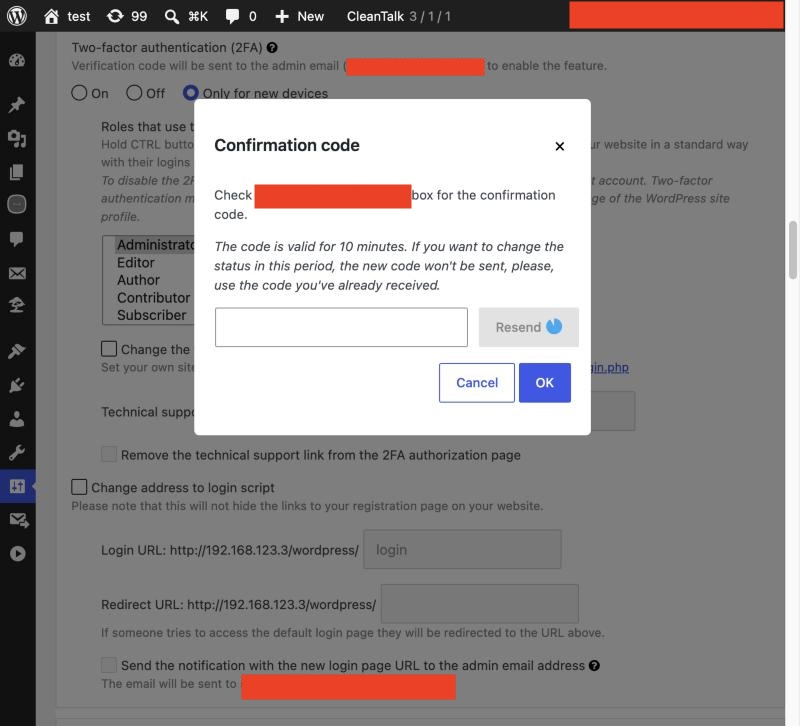
- Email codes by default. On login, the plugin emails a 6-digit one-time code to the user’s registered address, valid for 10 minutes. You enter it to finish signing in. Note: the code email is sent by your own site’s mail server (wp_mail), not by CleanTalk’s servers. Before you can switch 2FA on, the plugin sends an 8-digit confirmation code to your admin email to prove delivery works.
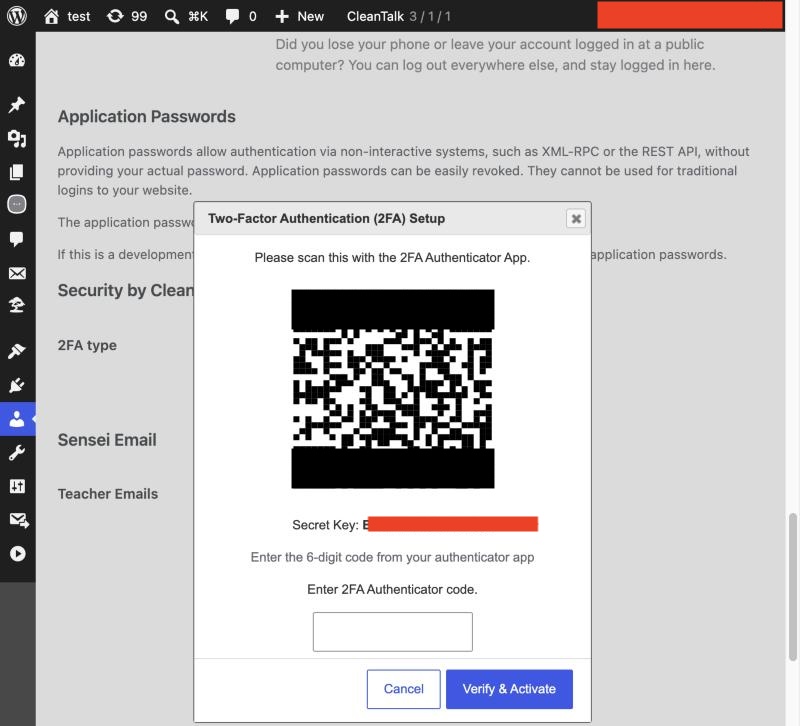
- Authenticator apps (TOTP). Each user can switch to time-based one-time passcodes using Google Authenticator, Authy, or a browser extension. The plugin generates the secret and renders the QR code locally (no third-party QR service); confirm setup with a 6-digit app code.
- Trusted devices. With “Only for new devices,” the plugin stores your browser signature after the first login and remembers it for 30 days, so you are only challenged on new or unrecognized devices.
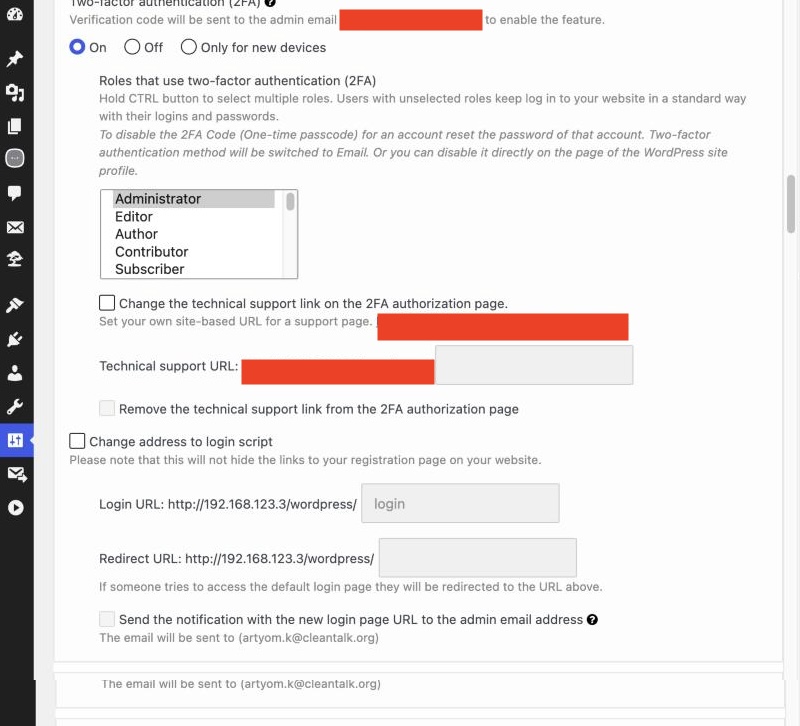
- Per-role policy. Choose which roles must use 2FA (Administrators by default; you can add Editors, Authors, etc.).
- Built-in safeguards. The 2FA step is rate-limited, optional login-notification emails flag each sign-in, and the authenticator secret is automatically wiped on a password reset.
How to enable 2FA in Security by CleanTalk (step by step)
1. Install the plugin
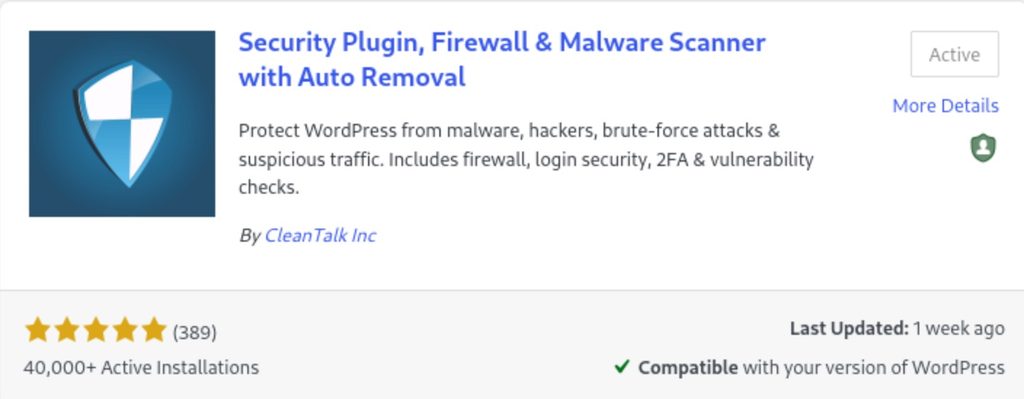
In your WordPress admin, open Plugins → Add New, search for “Security by CleanTalk“, click Install Now, then Activate.
2. Open the 2FA setting
Go to Settings → Security by CleanTalk → General Settings and open the “Authentication and Logging in” category. Set “Two factor authentication for administrators” to On (every login) or Only for new devices.
3. Confirm your email can receive codes
A dialog checks that your address can receive mail. Open your inbox, copy the verification code, and enter it. If nothing arrives, check your site’s mail (SMTP) configuration — the codes come from your server, not from CleanTalk.
4. Choose which roles require 2FA and save
Select the roles that must use 2FA (Administrators are selected by default), then Save Changes.
5. (Optional) Switch to an authenticator app
Each user can upgrade from email codes to an app. Open your WordPress Dashboard → Profile, find the Security by CleanTalk 2FA section, and scan the QR code with Google Authenticator (or enter the manual key). Confirm with the current 6-digit code.
6. Log in with your second factor
Next time you sign in, after your password you will be asked for the one-time code — from your email (you have about 10 minutes to enter it) or from your authenticator app.
To turn 2FA off, a user can disable it in Profile Options, or an administrator can disable it for the site from the CleanTalk Dashboard → Site Security settings — useful as an emergency recovery path.
Alternative 2FA options for WordPress
CleanTalk is not the only way to add login codes. Here is how it compares to the most common alternatives, so you can pick what suits your setup.
| Solution | Methods | Best for | Notes |
|---|---|---|---|
| Security by CleanTalk | Email codes + authenticator (TOTP), per-role, trusted devices | Sites that also want a firewall, malware scanner, and spam protection in one plugin | 2FA included in a broader security suite; free |
| WP 2FA | Authenticator apps, email, backup codes | Teams wanting to force 2FA across roles with wizards | Dedicated 2FA plugin; some features are premium |
| Two Factor (by the WP community) | TOTP, email, FIDO U2F/WebAuthn security keys | Developers who want a lightweight, standards-based option | Free and open; minimal UI, fewer policy controls |
| Wordfence Login Security | Authenticator apps, reCAPTCHA, XML-RPC controls | Existing Wordfence users | Standalone module also available; app-based codes |
If you already run a full security plugin, using its built-in 2FA (as with CleanTalk) avoids plugin overlap and keeps login policy, firewall, and audit logs in one place. If you only need codes and nothing else, a dedicated plugin like Two Factor is a lean choice.
Frequently asked questions
Is CleanTalk 2FA free?
Yes. Two-Factor Authentication is included in the free Security by CleanTalk plugin, alongside brute-force protection and the firewall.
What if I don’t receive the email code?
The code email is sent by your website’s mail server, not CleanTalk. If codes don’t arrive, fix your site’s email delivery (for example, install an SMTP plugin) and check spam folders. You can also switch to an authenticator app, which works offline.
Will I have to enter a code every single time?
Not if you choose “Only for new devices.” The plugin remembers a confirmed browser for up to 30 days, so you’re only challenged on new or unrecognized devices.
What happens if I lose my phone or my second factor?
An administrator can disable 2FA for the site from the CleanTalk Dashboard → Site Security, and individual users can turn it off from their WordPress Profile once logged in. Keep a recovery path (a second admin, or your hosting/file access) in case you’re locked out.
Does 2FA replace strong passwords?
No — it complements them. Use a unique, long password and 2FA. Together they defeat both password guessing and credential-stuffing attacks.
Can I require 2FA only for admins?
Yes. 2FA applies per role, and Administrators are the default. You can extend it to Editors, Authors, or any role you choose.
Protect your WordPress login in minutes
Get Two-Factor Authentication, a firewall, malware scanning, and spam protection — all in one place. Create your free CleanTalk account and secure your site today.
Sign up for CleanTalk — Free Trial