Almost every online malware scanner answers a narrower question than the one you are asking. You want to know “is my site infected?” — the scanner checks “is this one URL infected?”. If the injected script sits on /contact/, on a duplicated landing page, or on a doorway page a compromised plugin generated last week, your homepage still comes back green.
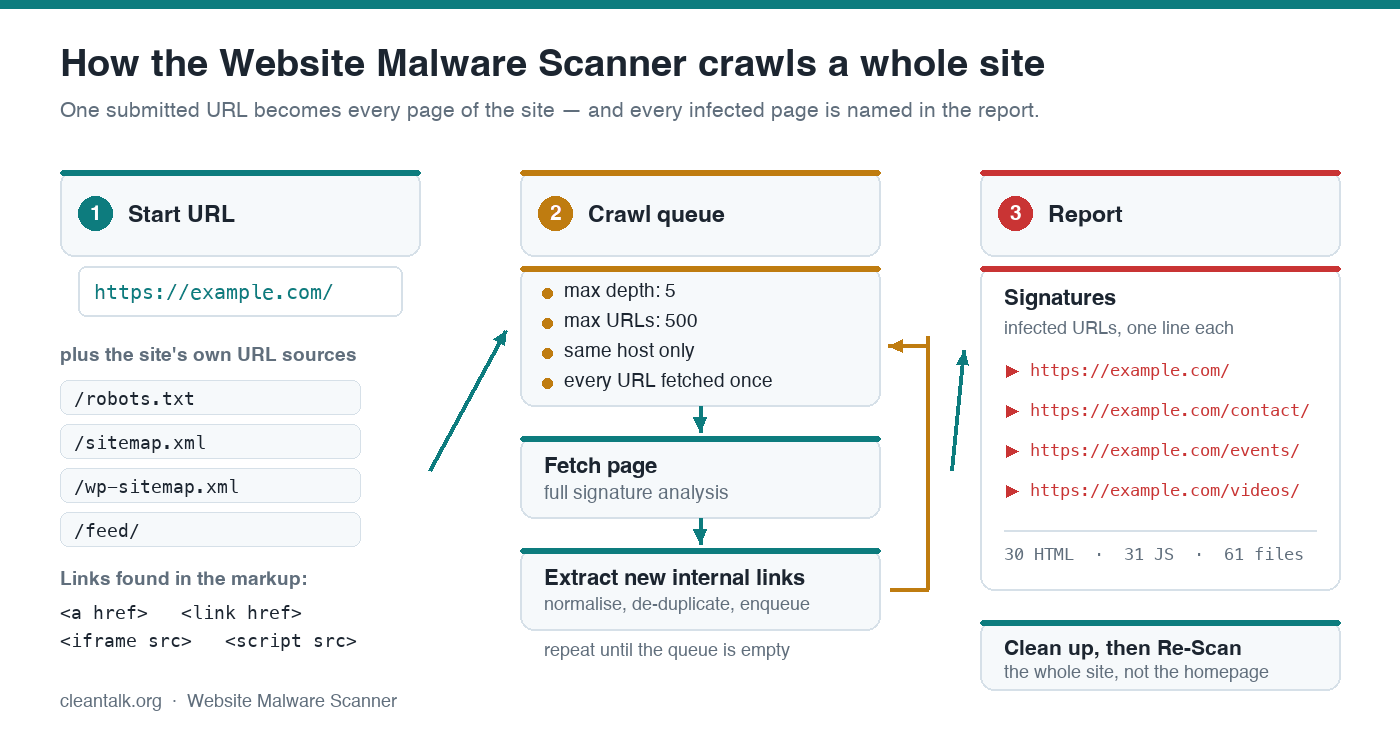
The CleanTalk Website Malware Scanner no longer works that way. It crawls the website: it collects internal URLs from the page markup and from the site’s own maps, puts them into a queue, runs the full signature set against every page it fetches, and then lists every infected URL it found under Signatures in the Malware details block. This guide explains how the crawl works, what limits it respects, how to read the result, and how it compares with the other ways of scanning all pages of a website for malware.
Why a homepage-only scan misses real infections
An injection in a theme header is easy to find — it is on every page, including the first one you check. The infections that survive for months are the ones that are not everywhere:
- Per-post injections. Malware written into post or page content in the database shows up only on the posts it was written into, not on a homepage built from a template.
- Generated doorway pages. SEO-spam campaigns create hundreds of URLs that are never linked from the menu. They exist for search engines, and they are frequently where the redirect script lives.
- Partially cleaned sites. The owner checks the homepage after a cleanup, sees a green verdict and stops. The loader is still on five inner pages.
- Conditional loaders. Injected JavaScript routinely skips known crawlers by user agent, stores a flag in localStorage so each visitor is hit once, and removes its own <script> node after it runs — so a manual look at “view source” proves nothing.
The practical consequence is simple: a single-URL verdict is a sample, not an answer. The case study further down shows a WordPress site where 12 URLs carried the same obfuscated loader while every public blocklist, Google Safe Browsing included, reported the domain as clean.
From one URL to the whole site: how the crawler works
The crawl is a straightforward breadth-first traversal, and every step of it feeds the same analysis pipeline that a single-page scan uses:
- Fetch the submitted URL and run the full analysis on it — signatures, drive-by download checks, redirect chain, SEO spam.
- Extract every internal reference from the HTML: <a href>, <link href>, <iframe src> and <script src>.
- Resolve relative URLs to absolute ones against the document’s base, so ../events/ and /events/ end up as the same canonical address.
- Filter — drop anything that leaves the scanned host, and drop URLs that are already in the queue or already visited.
- Enqueue the rest, then repeat: fetch, analyse, extract, enqueue, until the queue is empty or a limit is reached.
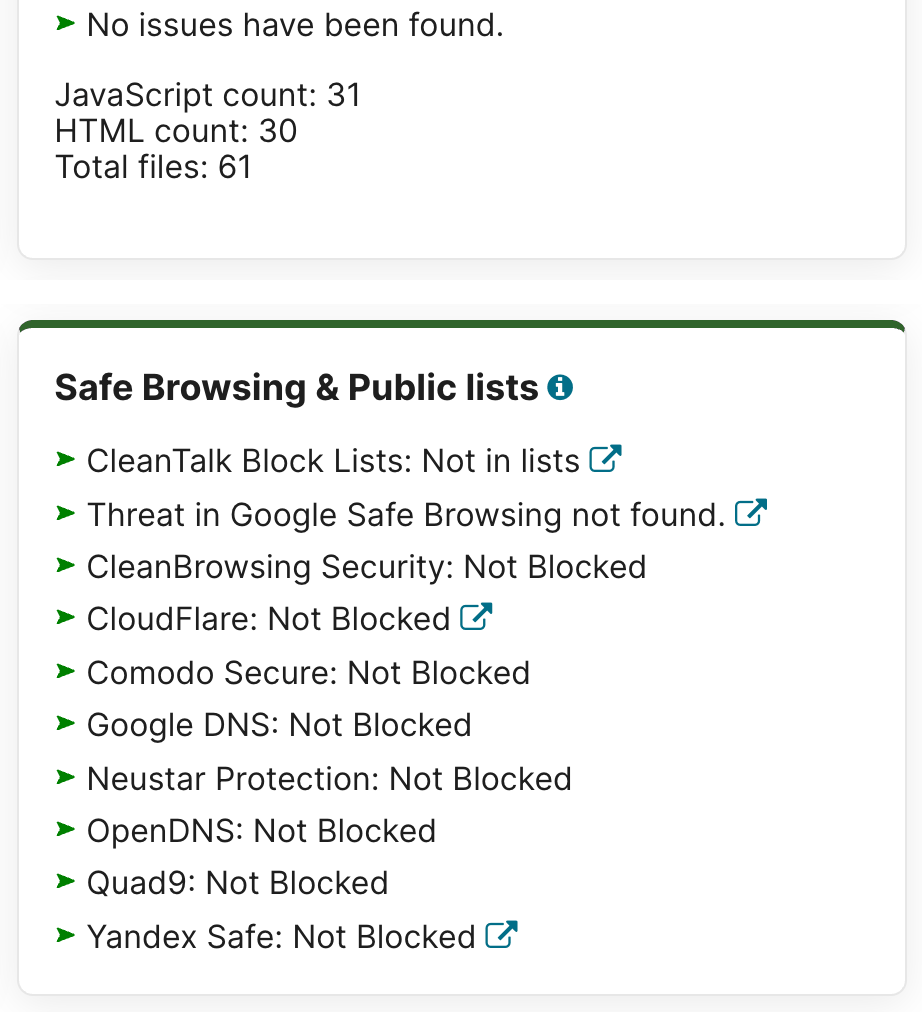
Two of those sources matter more than people expect: <script src> pulls in the separate JavaScript files where injected code is often parked instead of being inlined, and <iframe src> catches hidden frames used for drive-by loads. In the report below, one submitted domain produced 30 HTML documents and 31 JavaScript files — 61 files analysed.
Bounded by design: depth, URL budget and host scope
An unbounded crawler pointed at a large WooCommerce catalogue is a load generator, not a security tool. The traversal is therefore capped:
- Maximum depth: 5. Links are followed five levels from the starting URL, which reaches essentially every page a visitor can navigate to.
- Maximum URLs: 500 per scan. Enough to cover a typical business site or blog end to end, small enough not to hammer the server.
- Same host only. External destinations are listed under External links but not crawled — scanning somebody else’s site is not yours to request.
- Visited set. A URL is analysed once per scan however many pages link to it — which is what keeps a 500-URL budget meaningful on a site with a shared menu.
The scanner is currently marked beta, and those budgets get tuned with real traffic — if a limit gets in the way on your site, that is useful feedback for the team.
Extra URL sources: robots.txt, sitemaps and feeds
Following links finds what visitors can reach, but not what nobody links to — and unlinked URLs are exactly where spam pages live. The crawler therefore also seeds its queue from the site’s own machine-readable maps:
- /robots.txt — the Sitemap: directive points at the real sitemap, and Disallow: entries name directories the owner keeps out of search results.
- /sitemap.xml — the conventional location most SEO plugins serve or redirect to (/sitemap_index.xml for Yoast and Rank Math).
- /wp-sitemap.xml — generated by WordPress core since version 5.5, so it exists on a default WordPress install even without an SEO plugin.
- /feed/ — the RSS feed lists recent posts, including ones published but never linked from the navigation.
Sitemaps are the single most productive source of URLs for a malware crawl, because a hacked site very often keeps publishing its spam pages into the sitemap that the attacker wants indexed.
A real case: 12 infected URLs that every blocklist called clean
The report below is a live scan of a WordPress site running The Events Calendar. Submitting the bare domain was enough: the crawler walked the site and Signatures came back with 12 infected URLs — the homepage over both http and https, the contact page, the events index and three individual event pages, the video gallery and four ordinary content pages. The scanned domain is redacted in the screenshots below, because the site is still being cleaned up.
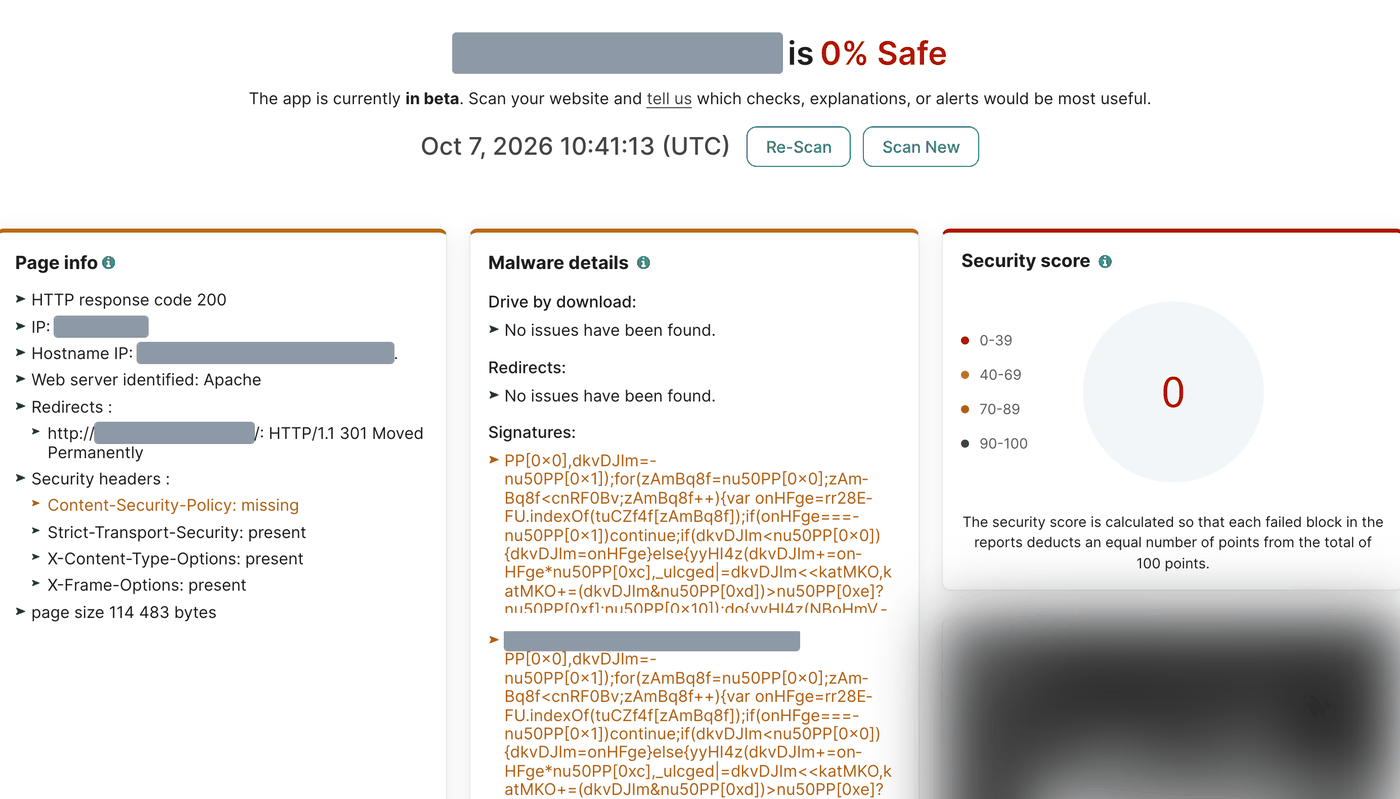
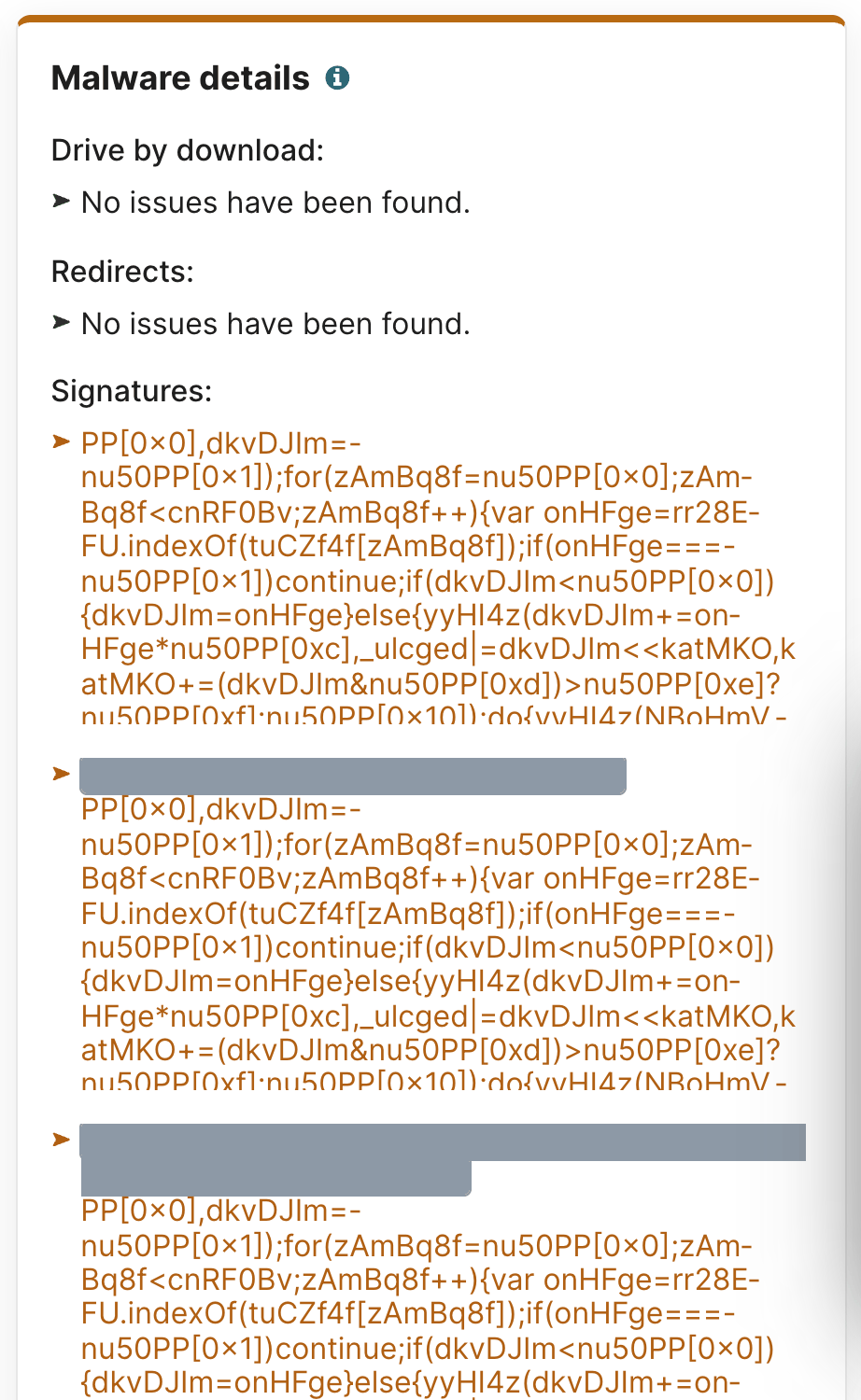
The payload on each page is the same obfuscated loader: it rebuilds strings from an encoded array, tests navigator.userAgent and exits for anything that looks like a bot, deletes its own script element, keeps a visitor id and an expiry timestamp in localStorage so a browser is served once per day, and hands a decoded payload to eval. All of it is built to stay invisible to the site owner.
The interesting part is the rest of the report. Every public reputation source said the domain was fine — Google Safe Browsing, CleanTalk block lists, Cloudflare, Comodo, Quad9, OpenDNS, Yandex Safe, Google DNS, Neustar and CleanBrowsing all returned Not Blocked — while the site scored 0% Safe on content analysis. Block lists are a lagging indicator, not a scan.
The same report also flagged a plausible entry point: Known vulnerabilities listed the installed version of The Events Calendar with seven CVEs against it. That is a correlation, not proof of the vector — but it is the first thing to patch.
What the CleanTalk Website Malware Scanner is
The CleanTalk Website Malware Scanner is a free online scanner that needs no installation and no access to your hosting: you submit a domain and it fetches and analyses the site the way a visitor’s browser would. In one report it covers malware signatures in HTML and JavaScript, drive-by download and redirect checks, SEO spam, the CMS and its known vulnerable components, reputation on ten public block lists, SSL validity, security headers, and a security score out of 100 that summarises the failed checks.
A remote scanner sees what the site serves. For what lives behind it — PHP backdoors, modified core files, rogue admins — CleanTalk also publishes the free Security by CleanTalk WordPress plugin: server-side malware scanning with auto-cure, a file integrity monitor, a cloud firewall, brute-force protection and 2FA. The cloud service behind it starts at $9 per year.
How to run a full-site malware scan, step by step
1. Submit the domain, not a deep page
Open the Website Malware Scanner and enter your address. Submit the bare domain rather than an inner page: the crawl starts where you point it, and starting at the root is what lets /robots.txt, /sitemap.xml, /wp-sitemap.xml and /feed/ seed the queue.
2. Wait for the crawl to finish
A full-site scan takes longer than a single-page check — it is fetching and analysing up to 500 URLs. The finished report opens with the security score and Page info: response code, IP, web server, redirect chain, security headers and page size.
3. Read Malware details → Signatures
This is what the crawl exists for. Each signature match is printed with the URL it was found on, so the block doubles as your clean-up checklist. Its footer tells you how much was examined — JavaScript count, HTML count and Total files.
4. Cross-check the supporting blocks
Check Known vulnerabilities for an unpatched plugin or theme that explains how the code got in, and Internal links for URLs you do not recognise — pages you never created are a strong sign of generated spam.
5. Clean up and re-scan
After the fix, press Re-Scan on the same report. Each report has a public URL — a convenient way to hand the evidence to your host or developer without screenshots.
An inner page is flagged — what now?
A remote scanner sees output, not source. The injected script is being printed by something on the server: a modified theme file, a plugin, an mu-plugin loader, or content stored in the database. A reasonable order of work:
- Back up first, database included, before changing anything — it is also your evidence.
- Scan from the inside. Run a server-side scan to find the file or database rows that produce the injection.
- Compare what changed. File integrity monitoring turns “something is wrong” into a dated list of files that were added or modified.
- Close the door. Patch the component the report named, remove unknown admin accounts and unexpected cron entries, then rotate passwords and the wp-config.php salts.
- Re-scan the whole site, not the homepage — that is the entire point of the crawl.
Alternatives: other ways to scan all pages of a website
No single tool is the whole answer. Here is how the common options compare for the specific job of finding malware on pages other than the homepage.
| Tool | Multi-page coverage | Server-side files | Free tier | Notes |
|---|---|---|---|---|
| CleanTalk Website Malware Scanner | Recursive crawl: links, sitemaps, robots.txt, feed — up to 5 levels / 500 URLs | No (use the plugin) | Free | Prints the infected URL next to each signature; adds CVE, blocklist, SSL and header checks |
| Sucuri SiteCheck | Follows links found on the scanned URL | No — server-side scanning is in the paid plans | Free, daily rate limit | Strong blocklist aggregation and a well-known second opinion |
| Quttera free scan | Crawls content from the submitted URL, capped at 20 MB of downloaded content | No — the ThreatSign agent is paid | Free, size-capped | Detailed per-file verdicts; the size cap, not a page count, is the limit |
| VirusTotal (URL scan) | One URL per submission | No | Free | Aggregates 90+ reputation engines — a verdict about reputation, not a crawl |
| urlscan.io | One page load per scan | No | Free | Records every request and redirect; excellent for proving what a specific page does |
| Search Console → Security Issues | Google’s own crawl of your site | No | Free, requires verified ownership | Shows sample affected URLs, but only after Google notices — a lagging signal |
| Security plugins (Security by CleanTalk, Wordfence) | Not page-based — they scan files and the database | Yes | Free tiers | The other half of the picture: they find the source, the crawler finds the symptom |
| DIY: Screaming Frog, wget + grep | Yes — you control the crawl (Screaming Frog’s free tier stops at 500 URLs) | No | Free / paid | Powerful, but you have to supply the signatures yourself |
In short: SiteCheck is the closest comparable tool. Quttera gives detailed per-file verdicts but stops at a content budget rather than a page budget. VirusTotal and Google Safe Browsing answer a different question — “has anyone flagged this domain yet?” — and the case above is what it looks like when the answer is “no” on an infected site. DIY crawling works if you already know the string you are hunting for, which is usually only true after somebody else identified the malware.
Frequently asked questions
Can an online malware scanner check all pages of my website?
Most check only the URL you submit. The CleanTalk Website Malware Scanner crawls the site: it collects internal URLs from <a>, <link>, <iframe> and <script> tags plus /robots.txt, /sitemap.xml, /wp-sitemap.xml and /feed/, analyses every page it fetches, and lists each infected URL.
How deep does the crawl go, and how many pages does it scan?
Up to five levels from the starting URL and up to 500 URLs per scan, on the scanned host only. Each URL is analysed once per scan, so a shared navigation menu does not consume the budget.
Why did another scanner say my site is clean?
Either it checked only the homepage, or it checked reputation rather than content. Block lists such as Google Safe Browsing report a domain only after it has been detected and listed, which can be weeks later. In the case above, ten public lists called the domain clean while twelve of its URLs served an obfuscated loader.
Will the crawler find pages that are not linked from anywhere?
If they are listed in a sitemap, in the RSS feed or in robots.txt, yes — and generated spam pages usually are, because the attacker wants them indexed. A URL referenced nowhere at all cannot be discovered by any crawler, which is why a server-side file scan is the necessary complement.
Does scanning slow my site down or look like an attack?
The crawl is bounded to 500 URLs and runs sequentially, so it is comparable to a search engine bot passing through. If your firewall rate-limits unknown crawlers, allow the scan or run it outside peak hours.
Can it scan pages behind a login?
No. The scanner fetches your site anonymously, as an ordinary visitor does, so members-only and admin pages are out of scope. Those need a server-side scan from inside the installation.
The scanner found malicious JavaScript — how do I remove it?
Take a backup, then find the source rather than editing the rendered page: run a server-side malware scan, use file integrity monitoring to see which files changed and when, check the database for injected content, patch the component named under Known vulnerabilities, remove unknown admin accounts, rotate passwords and salts, and re-scan the whole site.
Scan the whole site, not just the front page
If you have ever cleaned a site and wondered whether you got all of it, this is the check that answers the question. Run a full-site scan — submit your domain, let the crawler walk it, and read the infected URLs under Signatures.
Sign up for CleanTalk — free trial — malware scanning with auto-cure, file integrity monitoring, a cloud firewall, brute-force protection, 2FA and a vulnerability checker for your WordPress site, from $9 per year.