The most frustrating WordPress infection is the one you cannot see. You open your site and everything looks normal. Meanwhile Google lists your domain with Japanese product titles or pharmacy ads, or a customer tells you that clicking your link in search results lands on a casino. This is SEO spam: attackers who got into your site use your domain’s reputation to rank their own pages, and they deliberately hide it from you. This guide explains how the four common variants work — the Japanese keyword hack, the pharma hack, cloaking and search-only redirects — how to confirm an infection in ten minutes, how to clean it, and how to win back Google’s trust.
What SEO spam is and why attackers hide it
Attackers want three things from a compromised site: ranking power (an established domain ranks new pages faster than a fresh one), money (affiliate links, ads, or redirects to scam shops and casinos) and time (the longer the owner stays unaware, the longer the scheme earns).
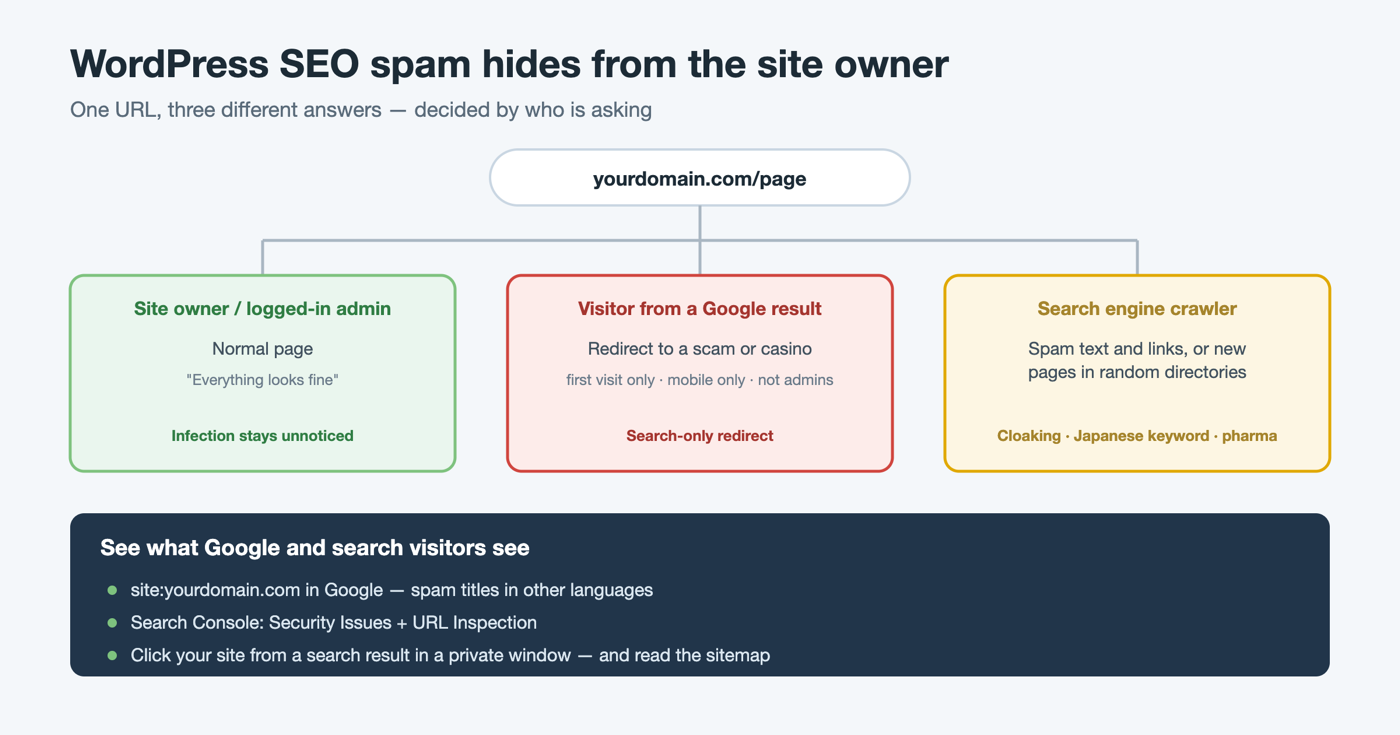
The third goal explains the whole technique. Spam that every visitor could see would be removed within days, so it is served selectively. Google’s spam policies name the practice cloaking — showing search engines different content from what users get — and state that when a site is hacked, it is not uncommon for the hacker to use cloaking to make the hack harder for the owner to detect. Google’s policy on hacked content lists the usual ways content ends up on your site without permission: code injection into existing pages, page injection of whole new spam pages, and content injection of hidden text and links (Google spam policies).
The four common forms
The Japanese keyword hack
The attacker generates new pages full of auto-generated Japanese text under random directory names, monetized with affiliate links to stores selling counterfeit brand goods. You usually never see these pages unless you search for them. Google’s own guide for this hack lists the typical signs: odd Japanese results for a site: search, spam URLs in your sitemap, and a notification that someone you do not know has verified your site in Search Console — attackers add themselves as owners, often through a rewrite rule in .htaccess that fakes the verification file (web.dev: Fix the Japanese keyword hack).
The pharma hack
Instead of new pages, the attacker injects pharmaceutical terms and links into your existing pages, frequently in a way that visitors cannot see but crawlers read. Search Console reports this class as hacked content with injected spammy links or text (Search Console Help: Security Issues report).
Cloaking
The site returns one page to a human browser and another to a crawler, deciding by user agent, IP address or referrer. A hacked travel blog that shows discount-pill pages only to Googlebot is the textbook example from Google’s policy. Cloaking is the delivery mechanism behind the first two hacks.
Search-only redirects
Visitors who arrive from a Google result are bounced to a scam or casino site, while visitors who type the address — including you — see the normal site. Malicious scripts usually add more filters: they skip logged-in users and administrators, redirect only on the first visit (a cookie or localStorage flag), only on mobile, or remove their own tag after running. We documented exactly this pattern, including a redirect that fired once per visitor and hid its own management screen, in Malicious PHP snippets in WPCode.
How to check your site in ten minutes
You need to look at your site the way Google and a search visitor see it, not the way you do.
- Search for your own domain. Type site:yourdomain.com into Google and page through the results. Look for titles in languages you do not publish, product names you do not sell, and URLs in directories you did not create.
- Open Search Console. Check Security Issues for hacked-content warnings, then use URL Inspection on a few URLs to view the page as Google fetched it — Google itself recommends this because many hacks change what only Google’s crawler sees.
- Click through from search. Open your site from a Google result in a private window, and repeat on a phone and on a different network. A referrer-based redirect only appears when the visit comes from search.
- Compare responses. Request the same page as a regular browser, as a crawler and as a visitor coming from Google, then diff the results (commands below).
- Read your sitemaps. Open /sitemap.xml and /wp-sitemap.xml and look for URLs you never published — a hacked site very often keeps feeding its spam pages into the sitemap.
- Check ownership and rewrites. In Search Console, review Settings → Users and permissions for owners you do not recognize, and look at .htaccess for rewrite rules you did not add.
Commands for step 4:
curl -s -A "Mozilla/5.0 (Windows NT 10.0; Win64; x64) Chrome/130 Safari/537.36" https://yourdomain.com/ -o browser.html
curl -s -A "Mozilla/5.0 (compatible; Googlebot/2.1; +http://www.google.com/bot.html)" https://yourdomain.com/ -o crawler.html
curl -s -e "https://www.google.com/" -A "Mozilla/5.0 (Windows NT 10.0; Win64; x64) Chrome/130 Safari/537.36" https://yourdomain.com/ -o from-search.html
diff browser.html crawler.html | head -40
diff browser.html from-search.html | head -40
A difference is a strong signal. No difference proves nothing: sophisticated malware verifies real search-engine IP addresses, so a faked user agent can still get the clean page. URL Inspection remains the authoritative check.
Where the code hides
SEO spam is rarely a single file. Check all of these:
- Server config: .htaccess rules that rewrite or redirect by user agent or referrer.
- Core entry points: index.php, wp-config.php, and the active theme’s functions.php and header.php.
- Fake and hidden plugins: malware that imitates a hosting or backup tool, or sits in wp-content/mu-plugins where it never appears in the normal plugin list — see Fake WP SiteGround Control malware and malicious mu-plugins.
- Generated spam pages: PHP or HTML files in random directories, or in wp-content/uploads, where PHP should never run (disable PHP execution in uploads).
- The database: links and scripts inside posts, widgets and options — and database triggers that put malware back after you delete it.
- Accounts: rogue administrators that let the attacker return.
Meet Security by CleanTalk
Security by CleanTalk is a free WordPress security plugin that combines a malware scanner with signature and heuristic analysis and auto-cure, a File System Watcher that reports every added or changed file, a cloud firewall, brute-force protection and 2FA. Its scanner detects SEO malware — hidden redirects, spam injectors and keyword-hack doorway files — in the files of a WordPress site. For the part the plugin cannot see — what a visitor’s browser actually receives — CleanTalk also offers the free Website Malware Scanner: you submit a domain, it crawls the site’s pages like a browser and checks them for malware signatures, redirects, SEO spam, known vulnerable components and blocklist reputation, with no installation and no access to your hosting. The cloud service behind the plugin starts at $9 per year after a free trial.
How to scan and clean with Security by CleanTalk
1. Install the plugin and add the access key
In the admin, go to Plugins → Add New, search for Security by CleanTalk, then Install Now and Activate.

Open Settings → Security by CleanTalk → General Settings and click Get access key automatically.

2. Run a scan
Open the Malware Scanner tab and click Perform Scan. Review Critical and Suspicious first: they list files with known malicious signatures or dangerous code, such as obfuscated loaders and web shells.
The same scan detects SEO malware on a WordPress site: injected redirect code that fires only for visitors from Google, spam-link injectors, Japanese-keyword doorway files and the obfuscated PHP loaders that deliver them are all flagged by signature and heuristic analysis. A file that matches a known SEO-malware signature appears in Critical; code that merely looks dangerous (for example eval over base64_decode) appears in Suspicious for you to confirm.
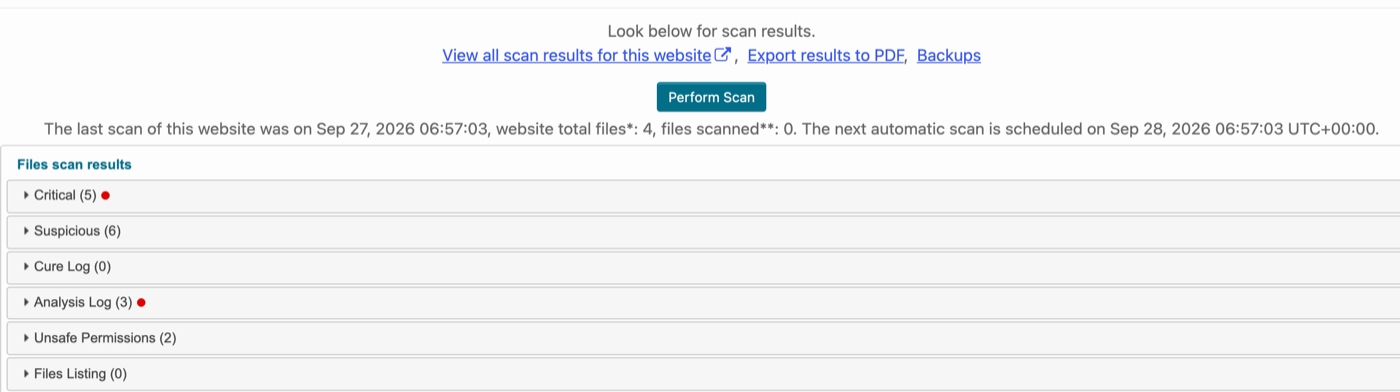
For each finding you can Cure (remove the malicious code), Replace the file with the original, or Delete it into quarantine — a backup is made before any action, so a failed cure can be undone from the Backups page.
3. Review outbound links
Turn on Scan links in General Settings. The scanner then collects the outbound links in your posts and lists them with the domain, link text and the page they sit on, which is the quickest way to spot injected pharma or casino links in content. Be aware that the plugin’s signature scan works on files, so content injected into the database shows up here for you to review rather than being removed automatically.
4. Keep watching for changes
Enable the File System Watcher and compare snapshots after cleaning: new files appearing in random directories are the signature of the Japanese keyword hack. Details are in our guide to WordPress file integrity monitoring.
After the cleanup: stop reinfection and repair your Google standing
Cleaning files without closing the door leads to reinfection — the cron-based re-infection pattern is common.
- Find the way in. Update every plugin and theme; the plugin’s Critical Updates tab flags installed components with known CVEs (SPBCT Critical Updates).
- Rotate everything. Change all administrator passwords and the database password, delete unknown administrators, and use Shuffle Salts to log every session out. Add two-factor authentication.
- Remove the spam URLs. Delete the pages so they return a 404 or 410, clean the sitemap, and resubmit it.
- Remove strangers from Search Console. Revoke owners you do not recognize and delete the verification file or .htaccess rule they used.
- Request a review. After every issue is fixed on every affected page, use Request Review in the Security Issues report and describe what you fixed. Google says reviews typically take several days to weeks, and that submitting before the problem is truly fixed, or resubmitting while a request is pending, can lengthen the process.
Alternative ways to find and remove SEO spam
No single tool covers both what is on the server and what Google sees, so most people combine two. Feature sets change, so check each vendor’s current documentation before relying on this table.
| Approach | What it shows | Strengths | Limits |
|---|---|---|---|
| Google Search Console | What Google indexed, Security Issues, URL Inspection | Free; authoritative on how Google sees your pages | Does not clean anything; reports only after Google detects the issue |
| CleanTalk Website Malware Scanner | Signatures in HTML and JavaScript, redirects, SEO spam, blocklists | Free; no install; crawls inner pages | Sees only what is served publicly, not server files |
| Security by CleanTalk plugin | Server-side file scan, cure with backups, File System Watcher, outbound links list | Works inside the site; cleans files | Database-injected content is reviewed through the links list, not auto-removed |
| Sucuri | Remote scanner (SiteCheck), security plugin, paid cleanup service | Well-known remote check | Full cleanup is a paid service |
| Wordfence | Plugin-level scanner and firewall | Large rule set, widely used | Some rule updates are delayed on the free tier |
| MalCare | Cloud-based scanner | Scans off-server, lighter on hosting | Automatic cleanup is a paid feature |
| Hosting-level scanners (e.g. Imunify) | Server-wide malware scanning | Sees files outside WordPress | Depends on your host; cleanup is often paid |
| WP-CLI checksums | wp core verify-checksums, wp plugin verify-checksums –all | Free and exact for core and WordPress.org plugins | Needs SSH; does not cover custom code or the database |
| Professional cleanup | Manual file and database review, root-cause analysis | Catches what tools miss | Costs money and time |
The practical combination for a typical site: Search Console plus the public scanner to see what the outside world sees, and a server-side scanner with file monitoring to find and remove what is behind it. For a site that keeps getting reinfected, a professional review of the database and hosting account is worth the cost — CleanTalk also offers a malware removal service.
Frequently asked questions
Why does my site look normal to me but spammy in Google?
Because the malware decides what to show based on who is asking — user agent, IP address, referrer, whether you are logged in, or whether it is your first visit. You are the one visitor it is built to ignore. Use site: searches, URL Inspection and clicks from a search result to see what others see.
How do I know whether I have the Japanese keyword hack?
Typical signs are site: results with auto-generated Japanese titles, spam URLs in random directories or in your sitemap, and an unknown verified owner in Search Console. Google’s guide treats an unexpected owner notification as a strong sign that the site has been hacked.
Will cleaning the malware remove the spam from Google?
Not by itself. Google must recrawl the cleaned site. Make the spam URLs return 404 or 410, resubmit a clean sitemap, and, if Search Console shows a Security Issue, use Request Review after everything is fixed.
How long does a Google review take?
Google says reviews typically take several days to weeks. Submitting before the site is clean, or resubmitting during a pending review, can make it longer.
Why does the spam come back after I delete it?
Usually one entry point was left open: an outdated plugin, a rogue administrator, a backdoor in a hidden mu-plugin, a malicious cron job or database trigger, or reused passwords. Find the cause, rotate every credential and monitor file changes.
Can a plugin remove SEO spam automatically?
It can remove what it detects in files, such as known malicious code and loaders, and a backup is made first. Spam injected into database content and pages generated in odd places still need review, which is why scanning, file monitoring and a manual check work best together.
Should I restore a backup instead of cleaning?
A backup from before the infection helps, but only if you also fix the entry point and rotate credentials. Otherwise the same vulnerability reinfects the site, and an old backup can bring back an outdated, vulnerable plugin.
Key takeaway
SEO spam works because it hides from the one person who could stop it. Look at your site as Google and a search visitor do, check site:, Search Console and your sitemaps, clean both files and database, close the entry point, and then ask Google to review. Keep file monitoring on afterwards so a new file in a strange directory is the first thing you hear about.
Sign up for CleanTalk — free trial — malware scanning with auto-cure, file integrity monitoring, firewall, brute-force protection and 2FA for your WordPress site.